HBO Max Error Code 1400500: The Ultimate Fix Guide
There’s nothing more frustrating than settling in for a movie night, only to be met with a cryptic error message. If you’re a Max user, you may have encountered HBO Max Error Code 1400500, a common but solvable issue that disrupts your streaming experience. This guide will walk you through everything you need to know to fix this error, from simple, quick solutions to more advanced troubleshooting steps for any device.
What is HBO Max Error Code 1400500 & Why Does It Happen?
In simple terms, HBO Max Error Code 1400500 means that the Max app on your device failed to complete a critical “streaming authentication handshake” with the server. This handshake is a security and validation process that confirms your device, account, and network are all authorized to stream content. When this process is interrupted, the app displays the error, preventing you from playing any videos.
Several factors can cause this authentication failure. The most common culprits are often related to your local setup, such as minor internet connection hiccups, corrupted data stored within the app, or outdated software on your device. In other cases, the issue might stem from using a VPN that conflicts with the service or, occasionally, a temporary problem with the HBO Max servers themselves.
Quick-Diagnosis Table: Find Your Fix in 60 Seconds
Before diving into a long list of fixes, use this table to quickly diagnose the likely cause of the error based on your specific situation. This can help you jump straight to the most effective solution.
| If you see this… | The likely cause is… | Try this first… |
|---|---|---|
| Error appears on only one device | A device-specific glitch | Restart the device & app |
| Error appears on all devices | A network or account issue | Restart your router |
| Error appeared after an app update | A bug in the new version | Clear the app cache/data |
| You are using a VPN | VPN is being blocked | Disable the VPN |
| Nothing works | A server-side outage | Check Downdetector |
8 Universal Fixes for Error 1400500 (Start Here)
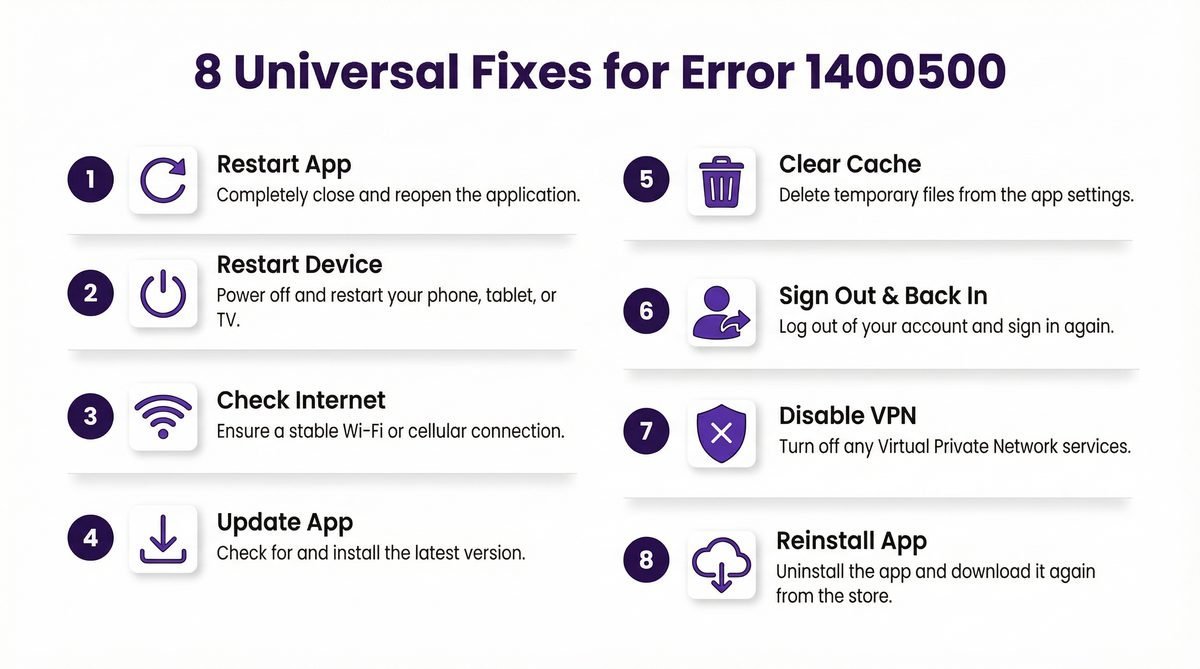
These eight steps, performed in order, will resolve the HBO Max error code 1400500 for the vast majority of users. They are designed to address the most common causes, from simple app glitches to corrupted data, without requiring deep technical knowledge.
1. Restart the Max App
The simplest solutions are often the most effective. A temporary glitch within the app can cause the streaming handshake to fail. Completely closing and reopening the Max app is the first thing you should always try.
2. Restart Your Device
If restarting the app doesn’t work, the next step is to restart your streaming device itself. Whether you’re using a smart TV, a streaming stick like a Roku or Firestick, a gaming console, or a smartphone, a full restart clears the device’s temporary memory and can resolve underlying issues that are affecting the Max app.
3. Check Your Internet Connection
A stable internet connection is crucial for uninterrupted streaming. If your connection is slow or unstable, the Max app may not be able to maintain a solid connection to the servers, leading to authentication errors. Run a speed test on your device to ensure you meet the minimum requirements.
| Quality | Minimum Speed |
|---|---|
| HD (1080p) | 5 Mbps |
| 4K UHD | 50 Mbps |
If your speed is significantly lower than these recommendations, try restarting your router or modem.
4. Update the Max App
Running an outdated version of the Max app is a common cause of unexpected errors. Developers regularly release updates to fix bugs and ensure compatibility with their servers. Go to your device’s app store, search for “Max,” and install any available updates.
5. Clear App Cache & Data
This is one of the most effective fixes for HBO Max error code 1400500. Over time, the Max app stores temporary files (the cache) to help it load faster. However, these files can become corrupted and interfere with the app’s ability to function correctly. Clearing the cache and data will remove these corrupted files, forcing the app to start fresh. You will need to sign back into your account after clearing the data.
6. Sign Out and Sign Back In
Sometimes, the issue lies with your account’s session token, which is a temporary key that keeps you logged in. Signing out of your Max account and then signing back in will generate a new session token and can resolve authentication-related problems.
7. Disable Your VPN or Proxy
While VPNs are great for privacy, they can interfere with streaming services. HBO Max, like many other platforms, actively blocks connections from known VPNs and proxies to enforce regional content restrictions. If you have a VPN enabled, disable it completely and then try launching the Max app again.
8. Reinstall the Max App
If none of the previous steps have worked, it’s time to reinstall the app. This process removes all of the app’s files from your device and installs a fresh copy. This is the most thorough way to eliminate any software-related issues with the app itself.
Device-Specific Fixes for Error 1400500
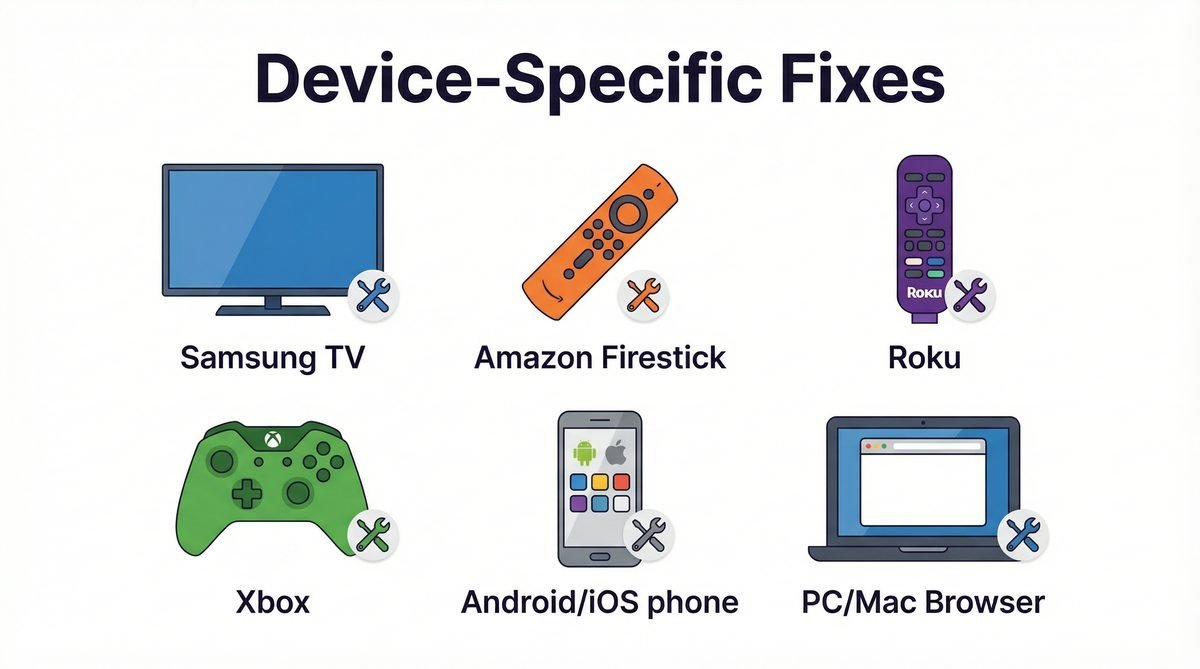
While the universal fixes resolve most cases, sometimes the solution requires a device-specific approach. Here’s how to tackle HBO Max error code 1400500 on the most popular streaming platforms.
On Samsung TV
Samsung TVs have a unique function for force-quitting apps. Instead of just returning to the home screen, hold down the Back button on your remote for several seconds until the app closes completely. If the error persists, you may need to clear the cache via the Smart Hub or, as a last resort, reinstall the app.
On Amazon Firestick / Fire TV
To clear the cache on a Firestick, navigate to Settings > Applications > Manage Installed Applications. Find and select the Max app from the list, and then choose the Clear Cache option. If that doesn’t work, use the Clear Data option from the same menu, which will require you to log in again.
On Roku
Roku devices don’t have a simple cache-clearing option. The most effective method is to remove and reinstall the channel. Highlight the Max channel, press the star button (*) on your remote, and select Remove channel. After it’s removed, go to the Channel Store and add it back.
On Xbox (Series X/S, One)
Gaming consoles often keep apps in a suspended state. To fully close the Max app on an Xbox, press the Xbox button to open the guide, highlight the Max app, press the Menu button (the one with three lines), and select Quit.
On Android / iOS (Phones & Tablets)
On both Android and iOS devices, you can clear the app’s cache and data through the device’s settings menu. On Android, go to Settings > Apps > Max > Storage & cache and tap Clear Cache. On iOS, the equivalent is to offload the app by going to Settings > General > iPhone Storage > Max and selecting Offload App.
On a PC or Mac Browser
If you’re seeing the error on a computer, the issue is likely related to your browser’s cache. Clear your browser’s cache and cookies, or try opening Max in an incognito or private window. This will start a fresh session without any stored data that could be causing the conflict.
How to Check for an HBO Max Server Outage
Sometimes, the problem isn’t with your setup at all. Streaming services can experience server outages that affect thousands of users at once. Before you spend too much time troubleshooting, it’s a good idea to check if HBO Max is down.
The most reliable way to do this is by visiting a third-party outage tracker like Downdetector. Simply go to their website and search for “Max” or “HBO Max.” If you see a large spike in user-reported problems, it’s a strong indicator of a widespread outage. In this case, the only solution is to wait. These issues are typically resolved by the company’s engineers within 30 to 60 minutes.
Advanced Troubleshooting: When Nothing Else Works
If you’ve tried all the steps above and are still facing the error, there are a couple of advanced solutions you can attempt.
Change Your DNS Settings
Your device uses a Domain Name System (DNS) to find the location of HBO Max’s servers on the internet. Sometimes, your internet service provider’s default DNS can be slow or unreliable. Switching to a public DNS server, such as Google’s (8.8.8.8) or Cloudflare’s (1.1.1.1), can sometimes resolve persistent connection and authentication issues.
Contact HBO Max Support
If all else fails, it’s time to contact the experts. You can reach out to HBO Max’s official support team via their help center at help.hbomax.com. When you contact them, be sure to have the following information ready: the exact error code (1400500), the model of your device, and a brief summary of the troubleshooting steps you’ve already tried.
Frequently Asked Questions (FAQ) about Error 1400500
What does HBO Max error code 1400500 mean?
It means the Max app failed to authenticate your streaming session with the server, often due to a network issue, corrupted app data, or a VPN conflict.
Why does the error keep coming back?
If the error is recurrent, it likely points to a persistent underlying issue, such as a very unstable internet connection or a corrupted app installation that wasn’t fully fixed by a simple restart. Clearing the app data or reinstalling the app is often the best fix for recurring problems.
Can a slow internet connection cause error 1400500?
Yes. While slow speeds usually cause buffering, a very unstable or intermittent connection can interrupt the initial authentication handshake, triggering this error.
What’s the difference between error 1400500 and 1400503?
Both are related to playback failures, but error 1400500 is more specifically tied to the initial streaming authentication, while 1400503 is a more general playback or connection error that can occur mid-stream.
How do I clear the cache on my specific device?
Refer to the “Device-Specific Fixes” section above for detailed instructions on how to clear the cache on Samsung TVs, Firesticks, Roku devices, and more.
Does reinstalling the app delete my watch history?
No. Your watch history, profiles, and “My List” are tied to your account, not the app itself. When you reinstall the app and sign back in, all your information will be restored.
Conclusion
Encountering the HBO Max error code 1400500 can be a frustrating interruption, but it is almost always fixable. By following the steps outlined in this guide—starting with a simple app restart, moving on to clearing the cache, and checking for outages—you can resolve the issue and get back to your show. Now, you are equipped to handle this error quickly and efficiently whenever it appears.
Last modified: March 10, 2026