Revolt Chat Not Working? 10 Fixes That Actually Work

Revolt chat not working is almost always caused by one of two things: a server-side outage affecting all users, or a local issue specific to your device, browser, or network. Knowing which one you’re dealing with cuts the troubleshooting time in half.
Revolt is an open-source, privacy-focused messaging platform built as a free alternative to Discord. It runs on a self-hosted infrastructure, which means when something breaks — a Revite web app error, a blank screen on the desktop client, messages refusing to load — the fix isn’t always obvious. The platform doesn’t have the same sprawling support infrastructure as larger apps, so users are often left diagnosing the problem themselves.
The frustration is real. You open the app and nothing loads. Or worse, it crashes mid-conversation with no explanation. Before burning time on Revolt desktop client troubleshooting or trying to clear app cache in Revolt, the first move is always to check Revolt server status — because no local fix will work if the platform itself is down. From there, the path splits by platform: browser, desktop, Android, iOS. Each has its own failure points, and each has specific fixes that actually resolve the problem.
Is Revolt Chat Down Right Now? Check Server Status First
Check Revolt server status before touching any local setting — no amount of local troubleshooting fixes a dead server. Unlike larger platforms, Revolt does not maintain a public Statuspage.io dashboard, so knowing where to look saves real time.
How to Check Revolt’s Official Status Page
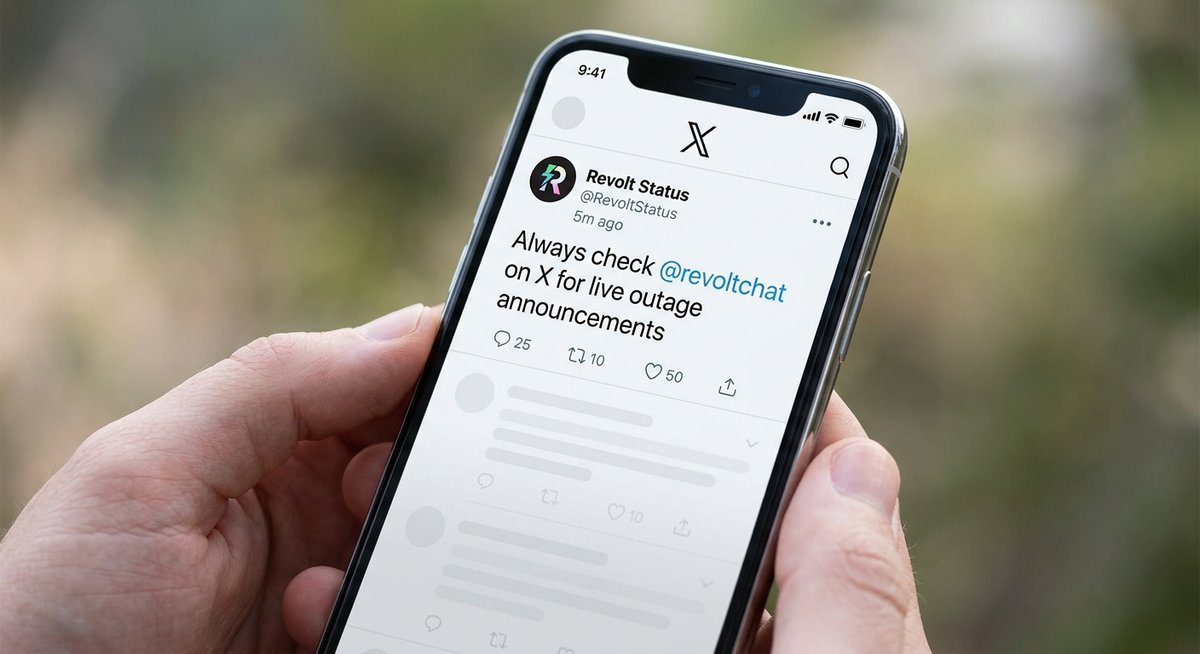
The fastest confirmation of a Revolt server outage comes from two sources: the official @revoltchat account on X (formerly Twitter) and the Revolt Lounge community server, where the Revolt development team posts real-time incident updates. Check both before assuming the problem is yours.
For crowd-sourced confirmation, Downdetector’s Revolt page aggregates user-reported problems in near real-time. A spike of 50 or more reports within a 30-minute window is a reliable signal that the Revite web app or core API is experiencing a genuine outage — not a local glitch.
| Resource | What It Shows | Best For |
|---|---|---|
| @revoltchat on X | Official incident announcements | Confirmed outages & ETAs |
| Revolt Lounge server | Dev team updates in #announcements | Detailed status & workarounds |
| Downdetector | User-reported problem spikes | Early outage detection |
Signs It’s a Local Issue, Not a Global Outage
Three indicators point squarely at a local problem: the issue appears on only one of your devices, other users in your Revolt servers report no disruption, or the Revite web app loads fine on mobile data but fails on your home Wi-Fi. Any one of these patterns shifts the diagnosis away from a server incident.
A blank screen that clears after you clear app cache on Revolt — or after switching browsers — is almost never a global outage. That’s a corrupted local cache, a misfiring extension, or a DNS hiccup on your network. The fix is local, and the remaining sections cover exactly that.
Quick-Fix Summary: Most Common Revolt Issues at a Glance
Most Revolt chat not working problems fall into five recognizable patterns, each with a reliable fix. Before working through the full platform-specific walkthroughs below, scan the table — if your symptom matches a row, jump straight to that section and skip everything else.
Symptom-to-Fix Reference Table
| Symptom | Most Likely Cause | Quick Fix | See Section |
|---|---|---|---|
| Blank or white screen on load | Corrupted Revite web app cache | Hard-refresh (Ctrl+Shift+R) and clear revolt.chat site data | Fix Revolt on Browser |
| Desktop client crashes on startup | Outdated Revolt desktop client or GPU driver conflict | Reinstall latest client; disable hardware acceleration | Fix Revolt on Desktop |
| Login loop (redirects endlessly) | Stale session cookie or browser extension interference | Open Incognito mode with extensions disabled | Fix Revolt on Browser |
| Messages not loading | WebSocket blocked by VPN or background app refresh disabled | Clear app cache Revolt; disable VPN; check network permissions | Fix Revolt on Mobile |
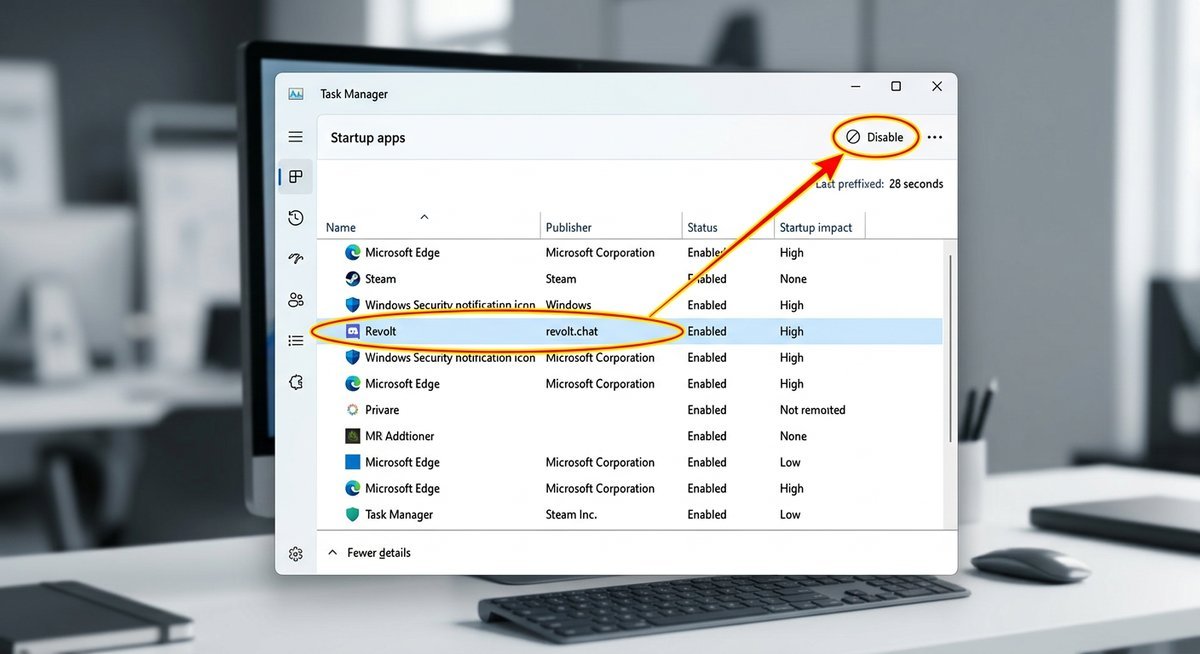
| App won’t open after PC login | Known Revolt desktop startup bug (startup-launch failure) | Remove Revolt from Task Manager startup programs; relaunch manually | Fix Revolt on Desktop |
One pattern worth flagging: if the Revite web app error appears on desktop but Revolt loads fine on mobile data, the problem is almost certainly local — a network or cache issue, not a Revolt server outage. Revolt desktop client troubleshooting and browser fixes resolve the overwhelming majority of reported cases without any need to contact support.
Fix Revolt Chat Not Working on Browser (Web App)
Browser-side failures account for the majority of Revite web app errors users report, and almost all of them trace back to three culprits: stale cache, interfering extensions, or a connectivity block between your browser and Revolt’s API endpoints. Work through these steps in order before assuming a wider outage.
Step 1 — Hard-Refresh and Clear Browser Cache
Start with a hard refresh: Ctrl+Shift+R on Windows/Linux, or Cmd+Shift+R on Mac. This forces the browser to bypass its cached assets and pull a fresh copy of the Revite web app from the server.
If the blank screen or loading error persists, clear the cache surgically — not the entire browser history. In Chrome, navigate to Settings → Privacy and Security → Site Settings → revolt.chat and delete stored data only for that domain. Firefox users can right-click the address bar padlock icon and select Clear Cookies and Site Data. Wiping the full browser history is unnecessary and logs you out of every other site.
Step 2 — Disable Extensions and Test in Incognito Mode
Ad blockers and privacy extensions are the single most common cause of WebSocket connection failures in Revolt. Tools like uBlock Origin, Privacy Badger, and browser-integrated VPNs routinely block the persistent WebSocket connections Revolt relies on for real-time messaging.
Open an Incognito or Private window — extensions are disabled there by default in most browsers — and navigate to app.revolt.chat. If Revolt loads cleanly in Incognito, an extension is the culprit. Re-enable them one at a time in a normal window to identify the offender, then whitelist revolt.chat in that extension’s settings.
Step 3 — Switch Browsers or Check Console Errors
Testing in a second browser takes under two minutes and immediately tells you whether the problem is browser-specific or something deeper. If Revolt works in Firefox but not Chrome, a Chrome profile setting or extension conflict is almost certainly responsible.
For users comfortable with developer tools, press F12, open the Console tab, and reload the page. Red network errors referencing api.revolt.chat or autumn.revolt.chat point to API connectivity problems — either a local firewall blocking those domains or a genuine Revolt server status issue worth reporting to the Revolt team via the Revolt Lounge server. Screenshot the error before reporting; it dramatically speeds up troubleshooting when escalating to support.
| Browser | Hard Refresh Shortcut | Clear Site Cache Path | Incognito Shortcut |
|---|---|---|---|
| Chrome | Ctrl+Shift+R / Cmd+Shift+R | Settings → Privacy → Site Settings → revolt.chat | Ctrl+Shift+N |
| Firefox | Ctrl+Shift+R / Cmd+Shift+R | Padlock icon → Clear Cookies and Site Data | Ctrl+Shift+P |
| Edge | Ctrl+Shift+R / Cmd+Shift+R | Settings → Cookies → See all site data → revolt.chat | Ctrl+Shift+N |
| Safari | Cmd+Option+R | Develop → Empty Caches (enable Develop menu first) | Cmd+Shift+N |
Fix Revolt Chat Not Working on Desktop (Windows, macOS, Linux)
Desktop client crashes, startup failures, and blank windows almost always trace back to either an outdated Revolt build or a GPU driver conflict with Electron’s rendering engine. The Revolt desktop client is built on Electron, which inherits Chromium’s hardware acceleration behavior — and that behavior interacts poorly with older or misconfigured GPU drivers.
Step 4 — Reinstall the Latest Revolt Desktop Client
Revolt desktop client troubleshooting starts with a clean reinstall. Uninstall the existing client, then delete leftover configuration files manually — the installer does not always clean these up.
- Windows: Delete the
%AppData%\Revoltfolder after uninstalling. This removes cached sessions, corrupted state files, and any stale configuration that the uninstaller missed. - macOS: Remove
~/Library/Application Support/Revoltafter dragging the app to Trash. Empty Trash, then reinstall from stoat.chat/download. - Linux (Flatpak): Run
flatpak uninstall chat.revolt.RevoltDesktopfollowed byflatpak install flathub chat.revolt.RevoltDesktop. Flatpak sandboxing keeps configuration isolated, but a full remove-and-reinstall resets everything cleanly.
Always download from the official source — stoat.chat/download or the revoltchat/desktop GitHub Releases page. Third-party download sites may distribute outdated or modified builds.
Step 5 — Disable Hardware Acceleration
If the Revolt desktop client crashes immediately after launch or shows a black window, the GPU acceleration pipeline is the likely culprit. Open Revolt’s settings (if you can reach them) and toggle off Hardware Acceleration under Appearance. If the client crashes before you can access settings, launch it from the command line with the --disable-gpu flag:
# Windows (PowerShell)
& "$env:LOCALAPPDATA\Programs\revolt-desktop\Revolt.exe" --disable-gpu

# macOS
open -a Revolt --args --disable-gpu

# Linux (Flatpak)
flatpak run chat.revolt.RevoltDesktop --disable-gpu
This forces Revolt to use software rendering instead of GPU-accelerated rendering. Performance takes a minor hit, but the crash-on-launch loop breaks immediately. If disabling GPU fixes the problem, update your graphics drivers — the issue is almost always a mismatch between Electron’s Chromium version and the installed driver.
Step 6 — Remove Revolt from Startup Programs
A known edge case: Revolt added to Windows startup programs sometimes fails to initialize properly during the login sequence, producing a blank window or immediate crash. The fix is straightforward — remove Revolt from startup and launch it manually.
On Windows: open Task Manager → Startup tab, find Revolt, right-click, and select Disable. On macOS: check System Settings → General → Login Items and remove Revolt if listed. This does not uninstall the app — it only stops the automatic launch that triggers the timing-dependent failure.
| Desktop Fix | When to Use It | Time to Fix |
|---|---|---|
| Clean reinstall + delete AppData | Crash on startup, corrupted state | 2–3 minutes |
| Disable hardware acceleration | Black screen, GPU-related crash loop | 30 seconds |
| Remove from startup programs | Blank window only on PC boot | 30 seconds |
Fix Revolt Chat Not Working on Mobile (Android & iOS)
Mobile-specific Revolt failures typically fall into three buckets: the app crashing on launch, messages refusing to load after the app opens, or push notifications going silent. Each traces to a different root cause, and the fixes differ between Android and iOS.
Step 7 — Clear App Cache on Android
Android’s cached data for the Revolt app (chat.revolt) can become corrupted after updates or unexpected shutdowns. Clearing the cache forces the app to rebuild its local state from the server.
- Open Settings → Apps → Revolt on your Android device.
- Tap Storage & cache.
- Tap Clear cache first. If the problem persists, tap Clear data (this logs you out — you will need to re-enter your credentials).
On devices from Huawei, Xiaomi, and Samsung, aggressive battery optimization can kill Revolt’s background process, preventing message delivery and breaking WebSocket connections. Navigate to Settings → Battery → App launch (path varies by manufacturer) and set Revolt to Manage manually with auto-launch, secondary launch, and background activity all enabled.
Step 8 — Offload or Reinstall on iOS
The Revolt iOS app is distributed via Apple TestFlight, which means beta builds occasionally ship with stability regressions. If the app crashes on launch or hangs on the loading screen:
- Open Settings → General → iPhone Storage → Revolt.
- Tap Offload App. This removes the binary but preserves your login data.
- Tap Reinstall App to pull the latest TestFlight build.
If offloading does not fix the issue, delete the app entirely and reinstall from TestFlight. Check the TestFlight app for pending updates — beta builds expire after 90 days, and an expired build will crash on launch with no error message. iPhone users who need reliable access while the beta stabilizes can use app.revolt.chat in Safari as a fully functional fallback.
Step 9 — Check Network Permissions and VPN Interference
Revolt relies on persistent WebSocket connections for real-time message delivery. VPN apps, DNS-level ad blockers (like NextDNS or Pi-hole), and corporate Wi-Fi captive portals can all silently break these connections. The symptom: the app opens, channels load, but new messages never appear.
Test by switching from Wi-Fi to mobile data. If messages flow normally on cellular, the problem is your network — either the VPN is dropping WebSocket connections or a DNS filter is blocking api.revolt.chat or ws.revolt.chat. Whitelist both domains in your VPN or DNS filter configuration.
Step 10 — Force Update to the Latest App Version
Both the Android and iOS apps receive frequent updates that fix known crashes and API compatibility issues. On Android, open Google Play Store, search for Revolt, and tap Update if available. On iOS, open the TestFlight app and check for pending builds under the Revolt listing.
Running an outdated mobile client against Revolt’s latest API can produce silent failures — the app connects but certain endpoints return errors the old client does not handle gracefully. Keeping the app current eliminates this entire category of failure.
| Mobile Fix | Platform | When to Use It |
|---|---|---|
| Clear app cache / data | Android | App crashes, messages not loading |
| Disable battery optimization for Revolt | Android (Huawei, Xiaomi, Samsung) | Notifications stop, background disconnects |
| Offload and reinstall | iOS | Crash on launch, loading screen hang |
| Whitelist revolt.chat domains in VPN/DNS | Both | App opens but messages never arrive |
| Update to latest app version | Both | Silent API failures, unexplained errors |
Frequently Asked Questions
Why is Revolt chat not loading today?
A stale browser cache, a conflicting extension, or a temporary Revolt server outage are the three most common causes. Check the official @revoltchat X account for incident announcements first, then try a hard-refresh (Ctrl+Shift+R) or clear site-specific cache for revolt.chat before concluding the problem is widespread.
Is Revolt chat down right now?
Revolt does not maintain a public Statuspage.io dashboard. Check Downdetector for user-reported spike activity and the Revolt Lounge server for developer incident posts — those are the two fastest real-time indicators. If the Revite web app loads on mobile data but fails on Wi-Fi, the problem is local, not a global outage.
How do I fix Revolt chat crashing on my computer?
Fully uninstall the Revolt desktop client, delete leftover files in %AppData%\Revolt on Windows, then reinstall the latest release from revolt.chat. If crashes persist after reinstalling, disable hardware acceleration inside Revolt’s settings — this resolves the majority of remaining crash-on-startup reports.
Why can’t I log in to Revolt chat?
A login loop almost always traces back to corrupted session cookies or cached credentials. Clear the site-specific cache Revolt stores in your browser — without wiping your full history — then attempt login again in a fresh private window to confirm extensions aren’t interfering.
How do I fix Revolt not working on Android?
Clear the app cache first: Settings → Apps → Revolt → Storage → Clear cache. If that does not fix it, clear all app data (which logs you out). On Huawei, Xiaomi, and Samsung devices, also check battery optimization settings — aggressive power management kills Revolt’s background process, breaking WebSocket connections and silencing notifications.
How do I contact Revolt support if the app isn’t working?
File a bug report on the Revolt GitHub issue tracker at github.com/revoltchat, where the development team actively triages reported problems. For account-specific issues such as login failures or bans, email support is available through the help page at revolt.chat.
Conclusion
Most Revolt chat not working problems collapse into a two-step mental model: check whether the platform itself is down first, then apply the fix that matches your specific device. Verify Revolt’s status via the official @revoltchat X account or Downdetector, rule out a global outage, and you’ve already eliminated half the possible causes before touching a single setting.
From there, the platform-specific fixes do the heavy lifting. Clear app cache on Android, offload the app on iOS, wipe the Revite web app’s site data in your browser, or do a clean reinstall of the Revolt desktop client — the overwhelming majority of issues resolve within five minutes using those steps. Revolt desktop client troubleshooting rarely needs to go deeper than that.
Bookmark this page and drop the link in your Revolt community server. If your instance is self-hosted, the Revolt Chat self-hosted Docker guide covers container-level debugging. And if everything is working and you are ready to extend your setup, the Revolt Chat bots and API guide walks through building automated integrations.
Last modified: March 26, 2026