Common Causes of Grainy Videos on PC and How to Fix Them

Watching videos is a great source of entertainment, but what if your important videos get corrupted or appear grainy while playing? Having a grainy, pixelated, or blurry video is frustrating – especially if it holds valuable memories or footage. Grainy videos not only reduce clarity but also make details hard to recognise. Fortunately, there are several video repair fixes available online that you can try to repair your grainy videos on a PC.
In this detailed guide, we’ll explore different common causes of grainy videos on PC and how to fix them – using both third-party software and online web-based tools. With the right method, you can restore clarity, reduce noise, and bring your videos back to life with ease. Let’s get started!
Common Reasons Why Your Videos Appear Grainy
There are several reasons why video files usually appear grainy or distorted. Understanding the exact reason helps you find adequate repair fixes. Here are the most common ones:
Improper Light During Recording
It is important to have proper lighting while recording or capturing videos. Shooting videos in dark or dim environments forces the camera sensor to increase ISO, which in result introduces noise, making the footage appear grainy.
High ISO Values
ISO determines the camera’s sensitivity to light. Having too high an ISO can brighten your camera footage, resulting in noticeable visual noise or grain.
Low Video Resolution
Capturing videos at lower resolution (480p or 720p) often makes your videos appear grainy, especially when viewed on larger screens like laptops or PCs.
Compression Artifacts
Compressing videos through WhatsApp, social media, or cheap recording devices reduces the bitrate and detail, creating blocky or pixelated visuals.
Underexposed Footage
If your video is recorded in very low light, it becomes underexposed. Brightening such footage during editing introduces digital noise, which makes the video appear more grainy, unclear, and visually distorted.
Corrupted Video Files
Sometimes a video appears grainy or pixelated during playback because the file is partially corrupted, causing missing data, damaged frames, or distorted visuals. This mainly happens due to improper transfer, unexpected shutdown during recording, or storage issues.
Improperly Configured Playback Settings
Outdated codecs, graphic driver issues, or low-quality playback modes may also make a video appear grainy even if the video file itself is fine.
How to Fix Grainy Photos on PC? [Quick Solutions]
Now that you are familiar with the common causes of grainy videos on PC, it’s time to immediately proceed with the video repair fixes. In this section, we’ve outlined some quick and easy workarounds that you can try to restore your original video file.
Method 01: Try Third-Party Video Repair Software
Let’s begin with the simplest approach first. If you are looking for a direct approach to fix grainy videos, try third-party video repair software like Stellar Repair for Video. It is an all-in-one video repair tool allowing you to fix videos that have become grainy, blurry, pixelated, and distorted due to any of the aforementioned reasons.
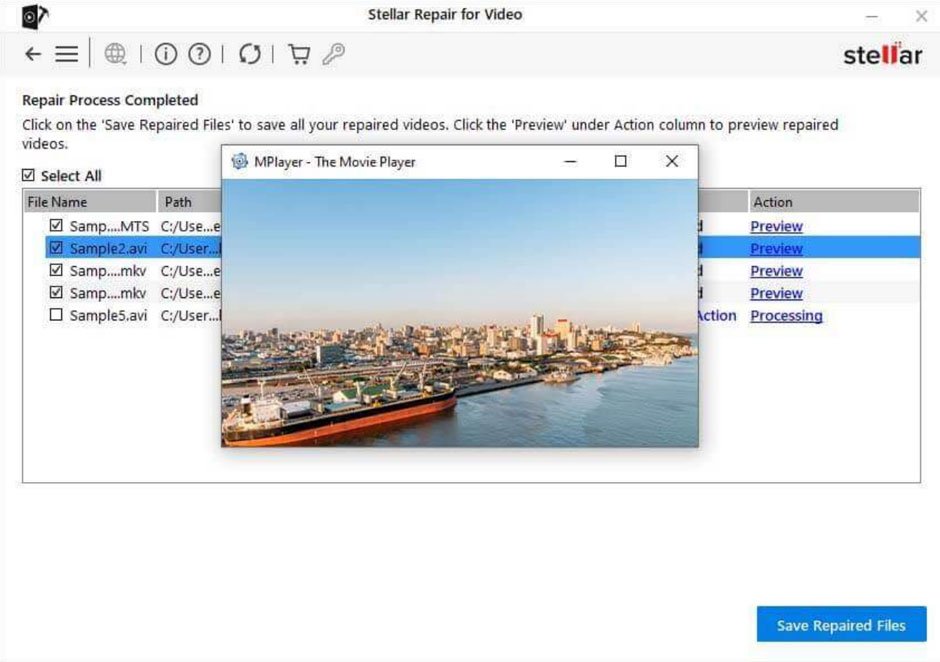
The Stellar Repair for Video software supports repairing damaged video files of several file formats, including MP4, MOV, AVI, MKV, M4V, and more. The tool fixes your video by reconstructing damaged frames, restoring detail, and removing artefacts due to corruption. The preview feature of this tool lets you preview the repaired video files before saving them on your PC.
Here’s how to repair grainy videos on PC using this amazing video repair software:
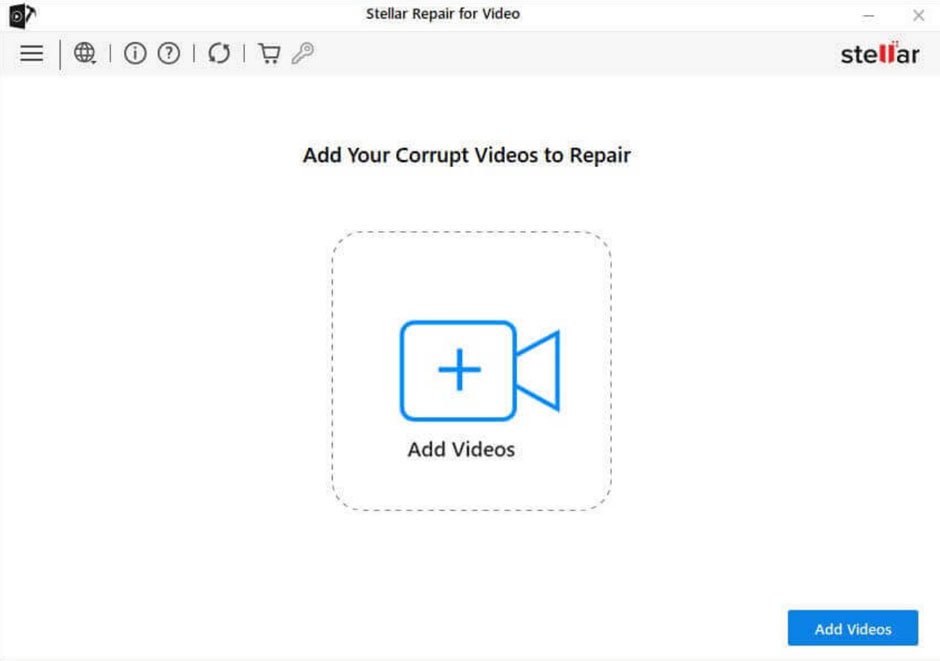
Step 1: Download and install the Stellar Repair for Video software from its official website. Launch the software and from the homepage, click Add Videos to upload the grainy video you need to repair.
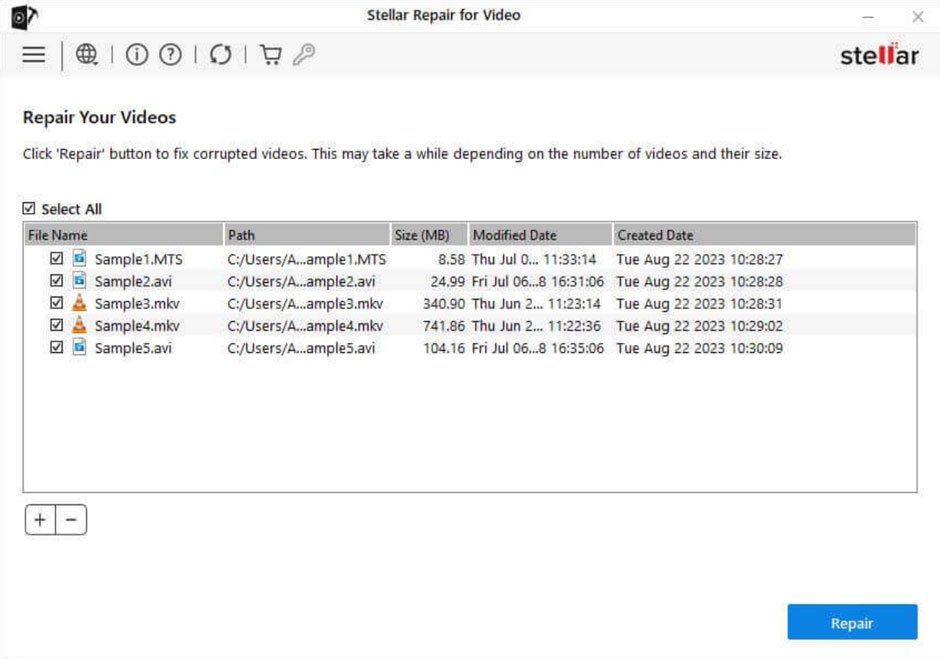
Step 2: Click Repair to begin the video repairing process and wait till the software analyses the video structure and repairs corrupt frames.
Step 3: Once repaired, preview the file to see the clarity and noise reduction. Click the Save Repaired Files button to save the fixed video to your preferred location on your PC.
Method 02: Repair Videos Using VLC Player
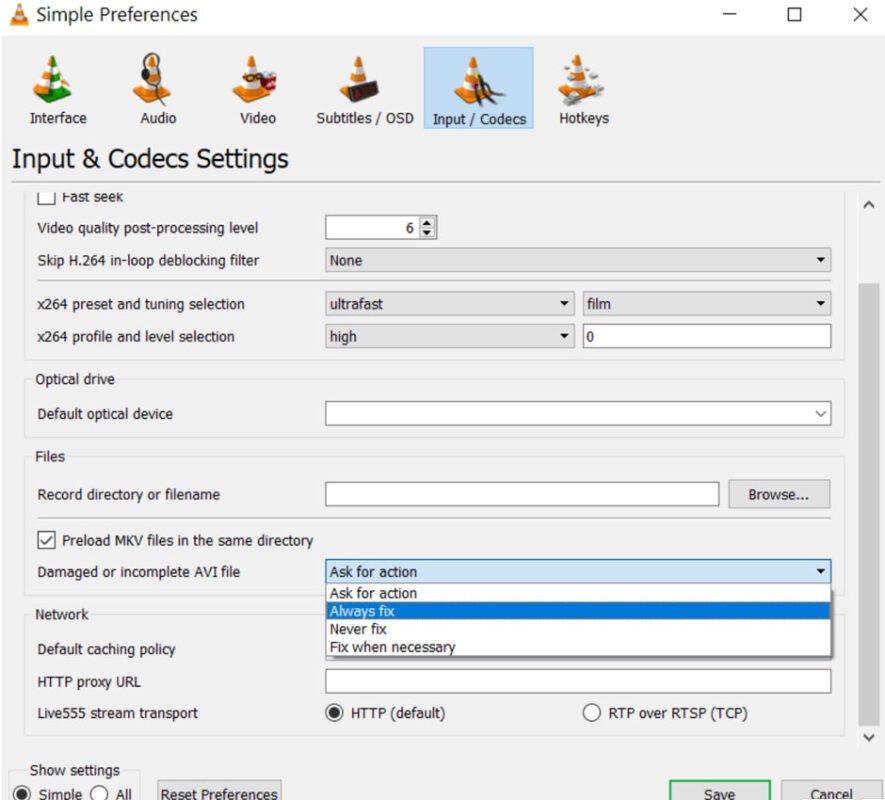
VLC Media Player, a widely used built-in tool on Windows, not only plays various video formats but can also fix minor video corruption issues. However, VLC supports only limited formats like AVI, and when repairing videos in formats such as MKV, it may display errors like “VLC not playing MKV file.”
Follow the below steps to fix grainy videos using the VLC player:
- Launch VLC media player on your PC.
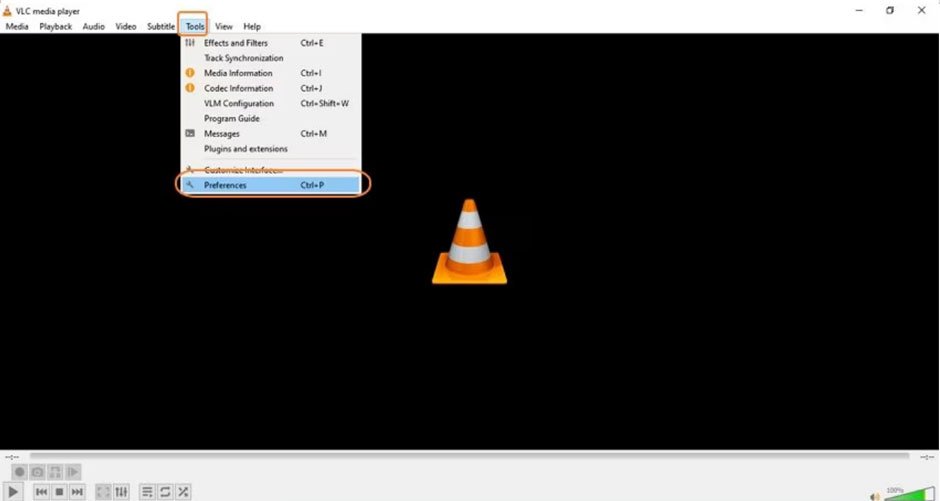
- Click on Tools from the menu bar at the top, then select Preferences.
- Now, go to the ‘Inputs/Codecs’ category and select ‘Always fix’ from the drop-down.
- Lastly, click on ‘Save’ to confirm the changes.
Method 03: Fix Grainy Videos Online [No Software Required]
If you don’t want to install any third-party software on your PC or the aforementioned video repair fixes seem difficult to fix grainy videos, try an online video repair. Some popular online tools, like Stellar Repair for Video Online, allow you to fix corrupted, grainy, pixelated, or damaged photos directly from the web browser; no need to install any third-party tool. This online tool is designed to repair videos suffering from quality degradation, minor corruption, or playback issues.
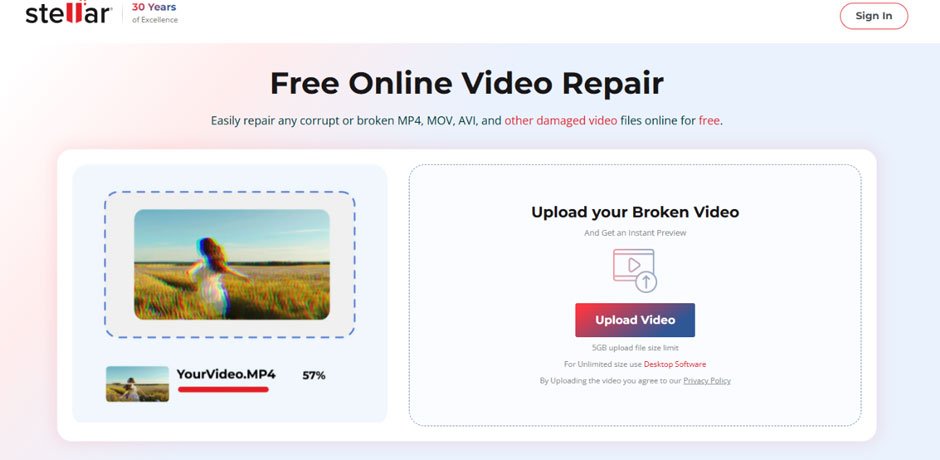
Check out the following features of the Stellar Repair for Video Online tool, which make it best for your video repairing:
- This online video repair tool supports repairing video files of various file formats, including MP4, MOV, AVI, MKV, and more.
- You can easily repair videos captured from smartphones, cameras, drones, CCTV systems, and other devices.
- The tool can effectively repair videos damaged due to graininess, pixelation, distortion, choppy playback, and damaged frames.
- It is a 100% safe and secure video repair tool, ensuring privacy and data safety.
- The repair process is extremely simple and can be executed in three steps, i.e., Upload > Repair > Download. No technical knowledge is required.
- It allows you to preview the repaired videos before saving them on your device to verify improvements in clarity and playback.
- You can start repairing videos instantly—no sign-up, login, or account creation needed.
Additional Tip: How to Avoid Graininess in Videos?
Now that you are familiar with different video repair fixes, both software-based and via online video repair tools, it’s time to check some preventive tips. These measures will help you avoid graininess in your video files:
- Always record your videos in good lighting to reduce the camera’s ISO boost, which helps lower image noise.
- Stabilise your camera during shooting, as shaky footage increases noise in the captured videos. Using a tripod or gimbal helps maintain clean frames.
- Shoot videos in 1080p or 4K and use higher bitrates. High compression results in pixelation and grainy output.
- Avoid raising brightness or exposure too much while editing, as it enhances grain. Use noise-reduction filters moderately for cleaner results.
- Dust or smudges cause blurriness and force the sensor to increase sensitivity. Always keep the lens clean.
Wrapping Up
Graininess in your video can destroy the watching experience. Whether your video appears grainy due to low light, bad resolution, compression, or playback errors, the aforementioned video repair fixes can help you easily fix it. Along with third-party software tools, you can try online web-based video repair options like Stellar Repair for Video Online to fix corrupt, damaged, or grainy videos. Its advanced algorithms reconstruct damaged frames, reduce noise, and restore clarity—making it ideal for personal, professional, CCTV, or drone footage.
Whether your video is mildly grainy or severely distorted, choosing the right method—online tool or advanced software—helps you bring back clean, smooth, and high-quality visuals.
Last modified: December 16, 2025