AI Dungeon Unexpected Error: How to Fix It Fast

The AI Dungeon unexpected error typically appears as a generic failure message mid-story, blocking any further AI response — and it strikes at the worst possible moments: deep into a branching narrative, right after logging in, or the instant the AI Dungeon app not loading screen finally clears. The message reads something like “an unexpected error occurred while processing your request,” and it offers almost zero diagnostic information. Players assume the platform is broken. Usually, the actual cause is far more specific — and fixable.
Three broad triggers account for most cases. Server-side outages on AI Dungeon’s infrastructure. Account-level issues like expired subscriptions or exhausted daily token limits. And user-side conflicts involving browser extensions, corrupted cache data, or unstable connections. Latitude, the company behind AI Dungeon, routes every story generation request through cloud-hosted large language models — so a failure anywhere along that chain surfaces as the same vague error message. Knowing which category applies cuts troubleshooting from an hour of guesswork to a few minutes.
Paying subscribers hitting this error mid-session have particular reason to work through a logical diagnostic sequence before contacting support. The fix is almost always within reach. It rarely requires a refund or a bug report. Start with the right question: is the problem on AI Dungeon’s servers, or on your device?
Is AI Dungeon Down? Check Server Status First
Check status.aidungeon.com before touching any setting on your device — this single step determines whether AI Dungeon is unavailable platform-wide or only failing on your end. When AI Dungeon’s infrastructure is degraded, every user on every device hits the same unexpected error simultaneously, and no local fix will help. According to AI Dungeon’s official support FAQ, server-side degradation is the first thing to rule out before any device-level troubleshooting. Takes under 60 seconds.

How to Check the Official AI Dungeon Status Page
Navigate directly to status.aidungeon.com, AI Dungeon’s official status page. The page displays real-time health indicators for each system component — API availability, story generation, authentication, and the web client — using a three-tier color system: green for Operational, yellow for Degraded Performance, and red for Major Outage.
A yellow or red indicator on the story generation component almost always maps directly to the unexpected error players see mid-adventure. Scroll down past the component list to find the active incident log, which typically includes a timestamp, a brief technical description, and an estimated resolution window.
The status page includes a subscription option. Enter your email address to receive automatic incident notifications the moment AI Dungeon’s engineering team posts an update — useful for premium subscribers who’d rather not refresh the page repeatedly.
What to Do While the Servers Are Down
If the status page confirms an active incident, stop troubleshooting your device entirely. Bookmark status.aidungeon.com and check back every 15–30 minutes for resolution updates posted by the AI Dungeon team.
For real-time community confirmation, the r/AIDungeon subreddit and the official AI Dungeon Discord server are the two most reliable secondary sources. When an outage is widespread, user reports typically surface within minutes — often faster than the status page itself updates. Seeing a dozen posts describing identical unexpected errors is a near-certain confirmation that the problem is server-side, not yours.
| Status Indicator | What It Means | Recommended Action |
|---|---|---|
| 🟢 Operational | All systems functioning normally | Problem is likely user-side — proceed with device fixes |
| 🟡 Degraded Performance | Partial outage or slow API responses | Wait 15–30 minutes; monitor the incident log |
| 🔴 Major Outage | Core systems unavailable | Wait for resolution; check Discord for ETAs |
Common Causes of the AI Dungeon Unexpected Error
Four distinct failure points account for the vast majority of AI Dungeon unexpected errors: API timeouts, account-level quota or billing issues, browser extension interference, and corrupted local cache data. Most are fixable in under two minutes without contacting support. AI Dungeon’s help center documentation on generation failures confirms that cache corruption and extension conflicts rank among the most frequently reported user-side causes — and they’re also the easiest to eliminate.
API Timeout and Story Generation Failures
AI Dungeon doesn’t generate story text locally — every response requires a live call to an external AI model API. Under heavy server load, that call can exceed its allotted response window and return a timeout. What you see is an AI Dungeon error continuing story message rather than any technical explanation of what actually went wrong behind the scenes.
These timeouts spike noticeably during peak hours and immediately after major platform updates, when simultaneous user demand strains the generation pipeline. A post-update surge is one of the most common triggers for the AI Dungeon error continuing story an unexpected error occurred variant. If the error appears mid-sentence or right after submitting an action, a backend timeout is the most likely culprit.
Account Token Limits and Subscription State
Free-tier accounts operate under a daily AI response quota. Once that limit is reached, the platform returns an error that looks visually identical to a server fault — there’s no clear “you’ve run out of tokens” message for many users.
Premium and Adventurer subscribers aren’t immune either. A lapsed payment, an expired card, or a billing cycle glitch can silently downgrade account permissions mid-session, triggering the same error. Check your account dashboard at aidungeon.com before assuming the problem is technical.
Browser Extensions and Script Conflicts
Ad blockers and privacy extensions — uBlock Origin and Privacy Badger are the most frequently reported offenders — can intercept or block the API requests AI Dungeon sends to its generation servers. The result is an AI response that never loads, logged internally as an unexpected error.
VPNs introduce a related problem: routing traffic through a congested or geographically distant server adds latency that pushes requests past the API timeout threshold. The fastest diagnostic here is opening a private or incognito browser window, which disables extensions by default, and testing whether the error reproduces.
Corrupted Cache, Cookies, and Local Storage
Stale session cookies and corrupted cached data are a leading cause of persistent, repeatable unexpected errors on the web version of AI Dungeon — errors that survive page refreshes and even full browser restarts. The browser is essentially replaying a broken session state on every load.
Local storage corruption typically develops after interrupted sessions, forced browser updates, or switching between accounts on the same device. A full cache and cookie clear, covered in the platform-specific steps below, resolves this category of error in the majority of cases.
| Cause | Typical Symptom | Affected Platform | Quick Check |
|---|---|---|---|
| API Timeout | Error appears mid-story, immediately after submitting an action | All platforms | Check status.aidungeon.com for degraded performance |
| Token Limit / Billing Lapse | Error triggers consistently after a set number of responses | All platforms | Log in to account dashboard and review subscription status |
| Extension / VPN Conflict | Error only in one browser; incognito window works fine | Web browser | Test in incognito mode with extensions disabled |
| Corrupted Cache / Cookies | Persistent error that survives page refresh | Web browser | Clear cache and cookies, then log back in |
Step-by-Step Fixes by Platform
The fastest fix for the AI Dungeon unexpected error depends entirely on where you’re playing — and whether the problem started after an AI Dungeon update error or appeared out of nowhere. A cache-clearing step that solves the problem in Chrome does nothing for an Android user who needs to force-stop the app. Skip straight to your platform below and follow the steps in order, from quickest fix to nuclear option.
Fix for Web Browser (Chrome, Firefox, Safari)
Clear your browser cache and disable extensions — that combination resolves the majority of AI Dungeon app not working reports on web. Browser-based sessions are the most common source of unexpected errors because extensions and stale cookies silently intercept the platform’s API calls without any visible warning.
- Open an incognito or private window and navigate to aidungeon.com. If the error disappears immediately, an extension or corrupted session cookie is the culprit — not the server.
- Disable all extensions and retest in a normal window. Ad blockers like uBlock Origin and privacy tools like Privacy Badger are the most frequent offenders; both can intercept AI Dungeon’s outbound model requests without triggering any obvious warning.
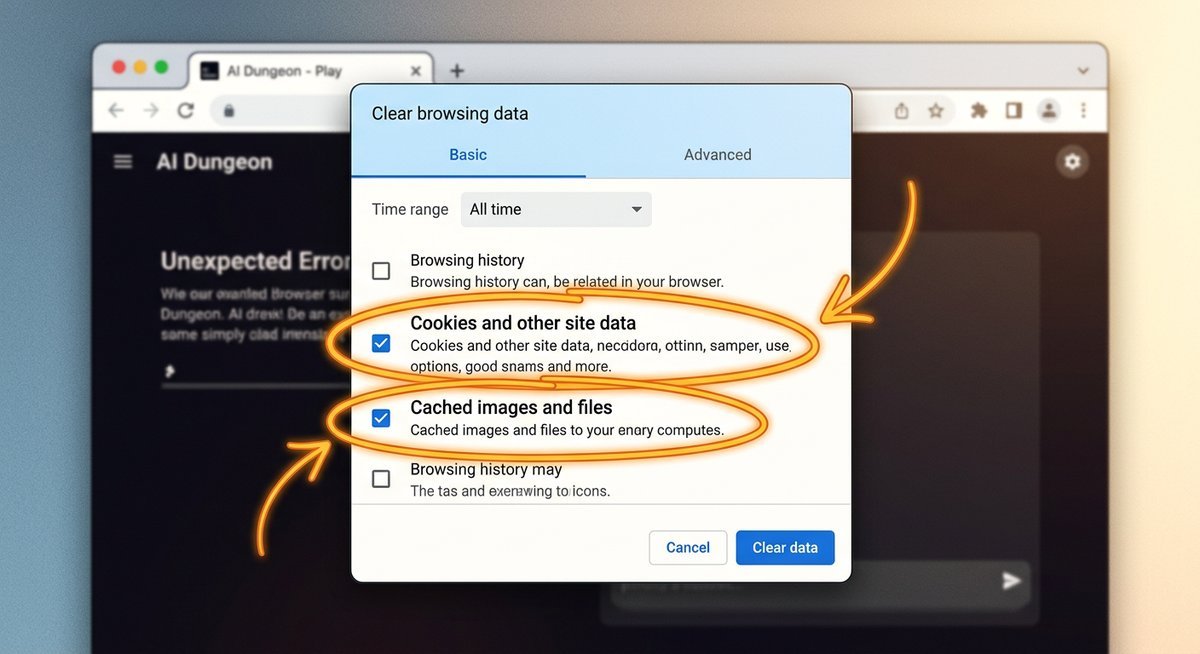
- Clear cache and cookies. In Chrome: Settings → Privacy and Security → Delete Browsing Data → check “Cached images and files” and “Cookies and other site data” → Delete data. In Firefox: Settings → Privacy & Security → Cookies and Site Data → Clear Data. This removes corrupted local storage that persists across sessions.
- Try a different browser entirely. If Chrome fails, test Firefox or Safari. A clean browser profile rules out any lingering extension or profile corruption.
- Disable your VPN if one is active. VPN routing can cause API requests to time out or return malformed responses that surface as unexpected errors.
Fix for iOS (iPhone and iPad)
Force-close the app, check for updates in the App Store, and toggle airplane mode — this sequence resolves most AI Dungeon app not loading issues on iOS within a minute. iOS caches app state aggressively, so a mid-story crash can leave AI Dungeon stuck in a broken session loop even after a normal close.
- Force-close the app. Swipe up from the bottom of the screen (or double-press the Home button on older models), then swipe the AI Dungeon card upward to fully terminate it.
- Check for app updates in the App Store. Open the App Store, tap your profile icon, and scroll to see pending updates. Running an outdated build is a documented cause of generation failures.
- Toggle airplane mode off and on. Enable airplane mode for ten seconds, then disable it. This forces the device to re-establish a clean network connection and clears any stalled socket.
- Offload and reinstall the app if the error persists. Go to Settings → General → iPhone Storage → AI Dungeon → Offload App. Offloading preserves your account data while removing the app binary; reinstalling from the App Store pulls a fresh copy.
- Confirm date and time are set to automatic. Go to Settings → General → Date & Time and enable “Set Automatically.” An incorrect system clock can cause SSL certificate validation failures that look identical to server errors.
Fix for Android
Force-stop the app and clear its cache through Settings — this fixes the AI Dungeon not working problem on most Android devices in under 30 seconds. Android’s direct access to app-level cache controls is a real advantage here, because you can wipe bad data without losing saved adventures.
- Force-stop the app. Go to Settings → Apps → AI Dungeon → tap Force Stop. This terminates any background process that may be looping on a failed API call.
- Clear the app cache. From the same screen: Storage → Clear Cache. This does not delete your saves or account data — it only removes temporary files. This single step resolves the majority of persistent Android errors.
- Check for updates on Google Play. Open the Play Store, search AI Dungeon, and confirm you’re running the current version. Developers frequently push hotfixes after server-side changes that break older client builds.
- Uninstall and reinstall as a last resort. Back up any locally stored preferences first, then uninstall via Settings → Apps → AI Dungeon → Uninstall and reinstall from the Play Store.
- Confirm a stable internet connection. Switch between Wi-Fi and mobile data to test. AI Dungeon’s model calls require a sustained connection; intermittent packet loss is enough to trigger a timeout error.
Fix for Desktop App
Delete the local cache folder and relaunch — that single step resolves the AI Dungeon update error and most desktop-specific failures. Some users run AI Dungeon through a browser-wrapped desktop client rather than a native application, and these clients accumulate corrupted cache in an app-specific folder just like a standard browser profile.
Clear the app’s local data folder — on Windows this is typically found under %AppData%\AI Dungeon, and on macOS under ~/Library/Application Support/AI Dungeon. Delete the cache subfolder, then relaunch. If the error continues, update the client to the latest version through whatever distribution channel you used to install it.
Switching to the web version at aidungeon.com is the fastest immediate workaround. The web client receives updates before the desktop wrapper does, so it’s often running a newer, more stable build at any given moment.
| Platform | Fastest First Fix | Nuclear Option |
|---|---|---|
| Web Browser | Open incognito window | Clear cache & cookies, try different browser |
| iOS | Force-close app, toggle airplane mode | Offload and reinstall app |
| Android | Force-stop app, clear app cache | Uninstall and reinstall |
| Desktop App | Clear local data folder | Switch to web version at aidungeon.com |
Frequently Asked Questions
Why does AI Dungeon keep showing an unexpected error?
Recurring unexpected errors usually point to one of four causes: API timeouts under server load, a lapsed or over-quota account, a browser extension blocking AI Dungeon’s network requests, or corrupted local cache data. Clearing your cache and testing in an incognito window resolves the issue for most users.
How do I fix the “error continuing story” message in AI Dungeon?
Force-refresh the page, disable any active VPN or ad blocker, and check your account dashboard to confirm your subscription is active. If the problem persists on one specific adventure but not others, that story’s data may be corrupted — starting a new adventure confirms whether the fault is story-specific.
Is AI Dungeon down right now?
Check status.aidungeon.com for live server status. If the page shows degraded performance or an active incident, the error is server-side and no local fix will help.
Why is the AI not generating anything in AI Dungeon?
A silent generation failure — where the input submits but nothing returns — typically signals an API timeout or a depleted free-tier token quota. Premium subscribers who hit this issue mid-session should verify their payment method hasn’t lapsed.
How do I report a bug to AI Dungeon support?
Submit a report at support.aidungeon.com. Include the exact error text, your platform, OS version, and the time the error occurred. Premium and Adventurer tier subscribers should note their subscription level — it flags the report for faster handling.
Why does AI Dungeon suddenly stop generating mid-story?
AI Dungeon suddenly halting mid-adventure usually means the backend AI model hit its token context limit or an API timeout occurred mid-generation. Long adventures with deep branching history consume more tokens per request — eventually the payload exceeds the model’s processing window and the response fails silently. Starting a fresh adventure or trimming earlier story branches reduces the context load.
Why is AI Dungeon giving empty output?
An AI Dungeon empty output — where the text field returns blank after submitting an action — signals either a content filter rejection or a generation timeout. Latitude’s content moderation system, documented in their official FAQ on empty generation, can silently block responses it flags as policy violations. If the empty output happens consistently regardless of input content, treat it as a timeout issue and follow the platform-specific cache and connection fixes above.
What do I do when AI Dungeon is unavailable?
When AI Dungeon is unavailable and the status page confirms a major outage, no local troubleshooting will resolve it. Subscribe to email notifications on status.aidungeon.com for automatic updates, and check the r/AIDungeon subreddit for community-reported ETAs. Outages tied to infrastructure provider issues — Latitude uses cloud-hosted GPU clusters for model inference — typically resolve within one to four hours.
Why is my AI Dungeon subscription not working?
An AI Dungeon subscription not working usually traces back to a failed payment renewal or a billing sync delay. Log into your account at aidungeon.com, navigate to the subscription dashboard, and verify your payment method is current. If the card on file was recently replaced, some payment processors take 24-48 hours to propagate the update. Restoring a lapsed subscription immediately re-enables premium features without losing saved adventures.
Conclusion
Most AI Dungeon unexpected errors follow a predictable pattern. Server outage, account issue, or local cache corruption — one of those three covers nearly every case. Start by confirming whether the platform itself is down at status.aidungeon.com. Status page shows degraded performance? The problem is out of your hands. Everything reads operational? The fault is almost certainly local.
That three-step diagnostic — check server status, identify whether the cause is server-side or user-side, then apply the platform-specific fix — resolves the overwhelming majority of AI Dungeon not working situations without ever needing to contact support. Premium and Adventurer tier subscribers who still see the error after exhausting every step should file a bug report at support.aidungeon.com, referencing their subscription tier for priority handling. A reproducible AI Dungeon unexpected error occurred message on a paid account is a legitimate support case, not just bad luck.
Bookmark the AI Dungeon status page now, before the next interruption hits mid-story. Thirty seconds of preparation saves ten minutes of frustrated troubleshooting later.
Last modified: March 25, 2026